
Typing creates a bottleneck between what you think and what you publish.
You might know exactly what you want to say in an email, Slack message, AI prompt, or project document. Turning those thoughts into clean written text still takes time.
Wispr Flow attempts to remove that bottleneck.
It is an AI-powered voice dictation application that converts natural speech into polished text across your devices and applications. Rather than simply transcribing every word, it can remove filler, add punctuation, interpret corrections, adjust formatting, and learn your vocabulary.
But there are important details most summaries miss: free usage limits vary by platform, Android currently has a different introductory offer, meeting notes are limited to Mac, and some privacy-sensitive desktop features are enabled by default.
Here is what to know before using it.
What is Wispr Flow?
Wispr Flow is an AI-powered speech-to-text application that lets you dictate directly into other apps instead of typing.
It works across supported devices and can insert dictated text into applications such as email clients, messaging platforms, document editors, and coding tools.
Unlike traditional voice typing, Wispr Flow processes your speech to produce cleaner written output. It can recognize corrections, remove verbal filler, format lists, and adapt text to the context.
For example, you might say:
“Send the report on Thursday, actually Friday, and ask the team to review the campaign numbers first.”
Wispr Flow can turn that into:
“Send the report on Friday and ask the team to review the campaign numbers first.”
Its primary products are:
- Wispr Flow Dictation: Voice-to-text across supported applications.
- Wispr Flow Notetaker: AI-powered meeting notes and voice memos, currently available on Mac with plan-specific limitations.
Source: Wispr Flow official product overview
How does Wispr Flow work?
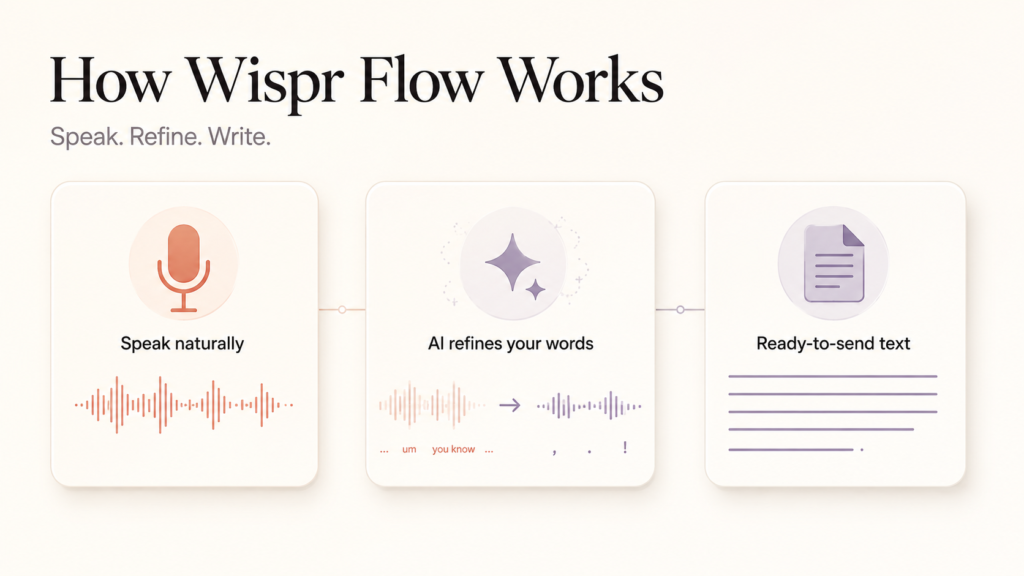
Wispr Flow records your spoken input, sends it for AI-powered processing, and inserts the resulting text into the active application.
The basic workflow looks like this:
- Install Wispr Flow on a supported device.
- Grant the necessary microphone and accessibility permissions.
- Open the application or text field where you want to write.
- Activate dictation through a keyboard shortcut or mobile interface.
- Speak naturally.
- Let Wispr Flow clean up and insert the resulting text.
- Review the output before sending or publishing.
On desktop, Wispr Flow uses shortcuts for push-to-talk and hands-free dictation.
Its documented default shortcuts include:
| Function | Mac | Windows |
|---|---|---|
| Push-to-talk | Fn |
Ctrl + Windows |
| Hands-free dictation | Fn + Space |
Ctrl + Windows + Space |
| Command Mode | Fn + Ctrl |
Ctrl + Windows + Alt |
| Paste last transcript | Cmd + Ctrl + V |
Shift + Alt + Z |
Shortcuts can be customized, and some features require a paid plan or additional configuration.
What devices support Wispr Flow?
Wispr Flow is available on:
- Mac.
- Windows.
- iPhone.
- Android.
The current minimum operating system requirements are:
| Platform | Minimum requirement |
|---|---|
| Mac | macOS 12 or later |
| Windows | Windows 10 or later |
| iPhone | iOS 18.3 or later |
| Android | Android 13 or later |
Mac supports both Apple Silicon and Intel processors. Windows requires a compatible 64-bit installation.
Android tablets and foldable devices are supported, although Wispr Flow says the experience is not yet fully optimized for those form factors.
There is no dedicated native Linux application listed among the supported platforms. Users working with Linux environments through Windows Subsystem for Linux or virtual machines may need to use clipboard-based workflows.
Source: Official supported devices and system requirements
What are the main features of Wispr Flow?
1. Voice typing across applications
Wispr Flow is designed to work wherever you would normally type.
Potential use cases include:
- Writing emails in Gmail or Outlook.
- Sending messages in Slack.
- Drafting documents in Notion or Google Docs.
- Creating prompts for ChatGPT or Claude.
- Writing social media captions.
- Updating project management tools.
- Dictating documentation in coding environments.
- Responding to customer support messages.
For many workflows, the advantage is that you do not need to dictate into a separate transcription app and then copy the result elsewhere.
2. Automatic filler-word removal
People rarely speak in perfectly edited sentences.
They pause, repeat themselves, and use filler such as “um,” “uh,” or “you know.”
Wispr Flow attempts to remove unnecessary filler so the final text reads more naturally.
For example:
Spoken:
“Um, I think we should, uh, launch the campaign next Tuesday.”
Written:
“I think we should launch the campaign next Tuesday.”
3. Automatic punctuation and formatting
Wispr Flow can add punctuation and structure based on the flow of your speech.
That can include:
- Full stops.
- Commas.
- Paragraph breaks.
- Numbered lists.
- Formatting for messages and documents.
This reduces the need to explicitly dictate punctuation throughout a sentence.
4. Real-time corrections and backtracking
You do not have to restart every time you change your mind.
For example:
“Book the meeting for Wednesday, actually Thursday at 3 p.m.”
Wispr Flow can interpret the correction and produce:
“Book the meeting for Thursday at 3 p.m.”
This feature is useful for people who think aloud while drafting.
5. Context-aware writing
Wispr Flow can use contextual information to adjust its output.
For example, a formal email may require different wording from a casual message.
Context awareness can also help with:
- Names mentioned in a conversation.
- Existing text on screen.
- Technical terminology.
- Open development tools.
- Relevant application-specific context.
However, the level of support varies:
| Platform | Context-awareness availability |
|---|---|
| Mac | Full functionality |
| Windows | Partial functionality |
| iPhone | Limited functionality |
| Android | Rolling out |
Context awareness is enabled by default on Mac and Windows. Users handling sensitive information should review this setting before using the product.
6. Personal dictionary and custom vocabulary
Wispr Flow can learn or store words that standard dictation frequently gets wrong.
Examples include:
- Customer names.
- Company names.
- Product names.
- Industry terminology.
- Acronyms.
- Internal project names.
- Technical vocabulary.
For a marketing team, this could mean consistently recognizing campaign names, client brands, product collections, or advertising terminology.
For developers, it may help with technical references and project-specific language.
7. Snippets and reusable text
Wispr Flow supports snippets for text you repeatedly use.
Examples include:
- Email signatures.
- Website URLs.
- Scheduling links.
- Company descriptions.
- Standard customer support responses.
- Frequently used instructions.
- Personal bios.
Instead of dictating the same information every time, you can use a spoken shortcut that inserts saved text.
8. Command Mode
Command Mode lets users issue instructions to modify text rather than only dictate new content.
Potential instructions include:
- “Make this more professional.”
- “Shorten this paragraph.”
- “Turn this into bullet points.”
- “Rewrite this as a customer email.”
- “Make this sound more casual.”
Command Mode is available on Mac and Windows and requires an active paid subscription or trial. It may also need to be enabled in the application settings.
9. Support for more than 100 languages
Wispr Flow supports speech-to-text in more than 100 languages.
It also supports language-specific behavior and multilingual workflows.
One particularly relevant option for Indian users is Hinglish.
Wispr Flow describes Hinglish as a blend of Hindi and English in which Hindi speech is written using the Roman alphabet, while English speech remains formatted as English.
For example:
“Kal campaign numbers check karna and send me the final report.”
This can be useful for people who naturally switch between Hindi and English in workplace conversations.
Language detection and feature availability vary by platform. Android does not support every language-detection capability available on desktop.
10. Meeting notes and voice memos
Wispr Flow Notetaker expands the platform beyond individual dictation.
It can support:
- Meeting recording.
- Transcription.
- Speaker identification.
- Meeting summaries.
- Action items.
- Voice memos.
- Questions about previous meetings.
- Connections to calendar and Slack.
- Use of meeting information with certain AI tools through MCP.
However, there are two major restrictions:
- Notetaker is currently Mac-only.
- It is currently not available for Enterprise organizations, although Wispr Flow indicates Enterprise availability is planned.
Meeting usage limits and retention periods vary by plan.
How much does Wispr Flow cost?
Wispr Flow currently offers three plan categories:
| Plan | Monthly price | Annual billing equivalent | Best for |
|---|---|---|---|
| Free | $0 | $0 | Occasional users and product testing |
| Pro | $15 per user | $12 per user per month | Frequent users, professionals, and teams |
| Enterprise | Custom pricing | Custom pricing | Organizations requiring advanced security and administration |
The annual Pro plan effectively costs $144 per user per year, based on the listed $12 monthly equivalent.
The standard month-to-month Pro plan costs $180 per year if maintained for 12 months.
That makes annual billing approximately $36 cheaper per user per year than paying monthly.
Source: Official Wispr Flow pricing
What does the free plan include?
The Free plan includes:
- Core speech-to-text functionality.
- Support across listed platforms.
- More than 100 supported languages.
- Vocabulary learning.
- Access to certain meeting-note features on Mac.
- Privacy controls.
- The ability to opt out of AI model training.
The main restriction is that free usage limits differ depending on the device.
What does the Pro plan include?
The Pro plan includes the Free features plus:
- Unlimited dictation.
- More meetings.
- Longer meeting retention.
- Access to advanced AI models.
- Command Mode.
- Earlier access to new features.
- Priority support.
- Centralized billing and user management.
Pro is most relevant for people who dictate frequently enough to exceed the free weekly limits.
What does the Enterprise plan include?
The Enterprise plan adds organization-level controls, including:
- SOC 2 Type II and ISO 27001 compliance positioning.
- HIPAA-ready business associate agreement options.
- SAML single sign-on.
- SCIM user provisioning.
- Audit logs.
- Mobile device management support.
- Domain management.
- Administrative controls.
- Usage analytics.
- Dedicated support.
- Organization-wide control over AI training preferences.
- Volume-based pricing arrangements.
Organizations evaluating Enterprise should separately verify whether specific product features, including Notetaker, are available to their account.
Is Wispr Flow free?
Yes. Wispr Flow offers a free plan, but its limits depend on the platform. Sign up here – Wispr Flow Free
Free limits on Mac and Windows
Wispr Flow currently documents:
- A 2,000-word weekly soft cap.
- A 5,000-word weekly hard cap.
A soft cap generally means the product may begin prompting you about usage or upgrades before you reach the absolute limit.
Some new users may receive temporary bonus allowances, but these offers should not be treated as permanent standard limits.
Free limits on iPhone
Wispr Flow currently documents:
- A 1,000-word weekly soft cap.
- A 1,500-word weekly hard cap.
Free usage on Android
Wispr Flow’s Android page states that unlimited dictation is free for all users at launch.
That introductory positioning differs from the desktop and iPhone limits and could change as the Android product matures.
Users should confirm the current Android terms before assuming unlimited access will remain permanent.
Does Wispr Flow work offline?
No. Wispr Flow requires an internet connection for voice transcription.
Its official documentation states that offline transcription is not available.
If the connection drops:
- Dictation may not start.
- Mobile interfaces may display an offline warning.
- Some captured audio may be preserved for later recovery or retry.
- Transcription can be delayed or interrupted.
This makes Wispr Flow less suitable for users who require fully offline speech recognition.
It also matters for privacy-conscious buyers who specifically want processing confined to their local device.
Is Wispr Flow safe and private?
Wispr Flow provides privacy settings and enterprise-oriented security controls, but the answer depends on how the product is configured.
The company highlights:
- SOC 2 Type II compliance.
- ISO 27001 compliance.
- HIPAA-ready workflows and business associate agreements.
- Privacy Mode.
- Cloud Sync controls.
- AI model-training opt-out.
- Local data storage options.
- Enterprise administrative controls.
These features matter, but they do not mean every configuration handles data identically.
Does Wispr Flow use your data to train AI models?
Wispr Flow states that users can control whether their content is used to train its AI models.
Its pricing page says users can opt out of model training, and its terms describe a setting that controls whether customer content can be used for training.
If this matters to you, check the setting directly rather than assuming training is disabled by default for every account or plan.
Does Wispr Flow take screenshots or read your screen?
Certain context-awareness features can involve screen-related information.
Wispr Flow’s security documentation states that screenshot processing depends on specific settings being enabled. It also states that screenshots are not retained by Wispr when Privacy Mode is enabled and Cloud Sync is disabled.
Context awareness is enabled by default on Mac and Windows, although individual capabilities differ across platforms.
Basic dictation on Mac does not require screen recording permission, according to the company’s documentation. Microphone and accessibility permissions are the primary requirements.
If you work with sensitive information:
- Open Settings → Data and Privacy.
- Review the Context Awareness setting.
- Disable screen-related context features if unnecessary.
- Enable Privacy Mode.
- Review whether Cloud Sync is enabled.
- Choose an appropriate local retention policy.
- Confirm whether AI model training is disabled.
- For regulated healthcare use, review the available business associate agreement workflow.
Source: Wispr Flow security and compliance FAQ
Can you delete stored transcripts?
Wispr Flow documents multiple local storage options, including:
- Store data locally.
- Automatically delete local data after a defined period.
- Never store local transcript data.
Its documentation describes options including automatic deletion of transcripts older than 24 hours and immediate removal under certain settings.
Availability can vary by platform and configuration.
Is Wispr Flow HIPAA compliant?
Wispr Flow describes its product as HIPAA-ready and supports business associate agreement workflows.
However, whether a particular deployment is suitable for a regulated workflow depends on the account configuration, signed agreements, privacy settings, and organizational policies.
Healthcare teams should verify:
- Whether an appropriate BAA is in place.
- Whether Privacy Mode is enforced.
- Whether context awareness is necessary.
- Whether local transcript retention is acceptable.
- Whether organization-level settings match internal requirements.
Does Wispr Flow work with ChatGPT?
Yes. Wispr Flow can be used to dictate prompts into ChatGPT wherever the application can insert text into the relevant interface.
For example, instead of typing:
“Analyze this campaign performance report and identify the three biggest reasons conversion rate declined.”
You can dictate the prompt directly.
The advantage becomes more noticeable with longer prompts that require detailed background, constraints, examples, or instructions.
Wispr Flow’s pricing page also states that meeting notes can be used with ChatGPT, Claude, and other AI tools through MCP, subject to product availability and setup. I used it to write few blog posts like this.
Does Wispr Flow work with Claude?
Yes. Wispr Flow can be used to dictate prompts into Claude and other applications with compatible text fields.
Its official materials also reference using meeting notes with Claude through MCP.
Practical uses include:
- Dictating long analytical prompts.
- Describing documents that need summarizing.
- Creating project instructions.
- Drafting coding requests.
- Turning spoken ideas into structured AI tasks.
Does Wispr Flow work with Gmail and Outlook?
Yes. Wispr Flow is designed to insert dictated text into supported applications and text fields, including email workflows.
For email, it can help with:
- Drafting replies.
- Writing outreach messages.
- Summarizing decisions.
- Providing detailed instructions.
- Rewriting messages more quickly.
- Capturing thoughts without switching applications.
Review the final text carefully when discussing prices, deadlines, customer commitments, or other sensitive details.
Does Wispr Flow work with WhatsApp?
Wispr Flow can be useful in messaging workflows when its device-specific interface can insert text into the WhatsApp application or WhatsApp Web.
The practical experience depends on:
- Your device.
- Operating system permissions.
- Whether you use the desktop, browser, or mobile application.
- The availability of compatible text insertion.
A useful workflow is to dictate longer WhatsApp messages naturally, then review them before sending.
Does Wispr Flow work for coding?
Yes. Wispr Flow supports developer-oriented workflows involving tools such as:
- Cursor.
- Visual Studio Code.
- Windsurf.
- Command-line applications.
- AI coding assistants.
- Documentation editors.
It can be useful for:
- Dictating detailed coding prompts.
- Explaining bugs.
- Writing documentation.
- Describing desired functionality.
- Drafting code comments.
- Referencing files and variables in supported environments.
Its documentation describes additional configuration for features such as variable recognition.
For example, a developer might dictate:
“Update the checkout component so the shipping message changes dynamically when the cart value crosses the free-shipping threshold.”
That instruction can then be entered into an AI coding assistant or editor.
Wispr Flow should not be confused with an autonomous coding tool. Its primary function is voice input and text generation inside your existing workflow.
Source: Wispr Flow documentation for Cursor, VS Code, and other IDEs
Can Wispr Flow record and summarize meetings?
Yes, through Wispr Flow Notetaker.
Available capabilities include:
- Meeting transcription.
- Speaker identification.
- Meeting summaries.
- Action-item generation.
- Questions about past meetings.
- Voice memo capture.
- Calendar connections.
- Slack connections.
However, the feature is currently limited to Mac and is not available for Enterprise organizations at the time of writing.
Meeting recording may involve participant audio and other meeting-related information. Users should follow applicable consent requirements and internal workplace policies before recording conversations.
Who should use Wispr Flow?
Professionals who write frequently
People who spend large portions of the day writing emails, messages, briefs, and internal documentation may benefit from voice-first drafting.
Founders and executives
Leaders can use dictation to capture strategic thoughts, delegate tasks, respond to messages, and document decisions.
Marketers
Marketing teams can use Wispr Flow for:
- Campaign briefs.
- Ad copy variations.
- Landing-page feedback.
- Influencer outreach.
- Weekly performance summaries.
- Content ideas.
- Creative direction.
- AI prompts.
- Stakeholder updates.
For example:
“Draft three Meta ad angles for a hand-beaded resort tote: one focused on craftsmanship, one on vacation styling, and one on gifting.”
Customer support teams
Support teams can dictate replies, document customer issues, and use saved snippets for recurring responses.
Developers
Developers can dictate feature descriptions, coding prompts, issue reports, documentation, and technical explanations.
Students
Students can use voice input to draft essays, summarize research, capture ideas, and take notes.
People with accessibility needs
Voice dictation can help users who have difficulty typing because of mobility limitations, repetitive strain, or other accessibility-related challenges.
Wispr Flow documents support for screen-reader and keyboard-accessibility workflows across its supported platforms.
Who should avoid Wispr Flow?
Wispr Flow may be a poor fit if:
- You need completely offline transcription.
- You require exclusively local AI processing.
- You cannot use cloud-based tools for work.
- You frequently work in noisy environments.
- You need a native Linux application.
- You do not want to grant microphone or accessibility permissions.
- You rarely write enough to benefit from dictation.
- Your organization prohibits screen-context processing.
- You primarily need meeting transcription on Windows.
- You expect the same features across every platform.
For some users, built-in operating system dictation or a local transcription application may be more appropriate.
Wispr Flow vs. built-in Apple dictation
Apple’s built-in dictation provides voice input within the Apple ecosystem.
Wispr Flow is positioned as a more feature-rich dictation layer that adds AI editing, custom vocabulary, contextual formatting, snippets, and broader cross-platform support.
| Consideration | Wispr Flow | Apple Dictation |
|---|---|---|
| Device coverage | Mac, Windows, iPhone, Android | Apple ecosystem |
| AI editing | Core product feature | Depends on Apple features, device, and configuration |
| Custom workflows | Snippets, dictionary, and configurable features | More dependent on native system capabilities |
| Cross-device platform diversity | Includes non-Apple devices | Apple devices only |
| Paid plan | Optional Pro subscription | Built into supported Apple devices |
| Offline suitability | Requires internet | Varies by device, language, and Apple configuration |
Wispr Flow is more relevant when you want a dedicated voice-writing workflow that extends beyond Apple devices.
Apple’s built-in option may be sufficient if your needs are basic and you prefer staying within native system tools.
Wispr Flow vs. Otter
Wispr Flow and Otter overlap around transcription but are designed around different primary workflows.
| Consideration | Wispr Flow | Otter |
|---|---|---|
| Primary use case | Dictation across applications | Meeting transcription and notes |
| Best for | Writing emails, prompts, documents, and messages | Capturing conversations and meetings |
| Text insertion | Designed around active application workflows | Primarily centered on meeting and transcription workflows |
| Meeting notes | Available through Mac-only Notetaker | Central product focus |
| Individual writing | Major focus | Not the primary positioning |
Choose Wispr Flow if your main goal is writing faster across applications.
Consider Otter if meeting capture and collaborative conversation records are your central requirement.
Wispr Flow vs. Dragon
Dragon is associated with professional speech recognition and dictation, particularly in specialized or enterprise-oriented workflows.
Wispr Flow emphasizes AI-assisted writing, context-aware formatting, broad application compatibility, and cross-device convenience.
The better choice depends on:
- Your operating system.
- Industry requirements.
- Preferred deployment model.
- Accessibility needs.
- Custom vocabulary requirements.
- Budget.
- Security and compliance expectations.
Users in specialized medical or legal environments should compare the specific edition, implementation, and contractual protections offered by each vendor.
Wispr Flow vs. Superwhisper
Wispr Flow and Superwhisper both target users who want more advanced voice dictation.
Wispr Flow emphasizes:
- Support across multiple operating systems.
- Context-aware writing.
- Enterprise controls.
- Personal dictionaries.
- Cross-application workflows.
- Meeting notes on Mac.
Users comparing the two should check current platform availability, local processing options, pricing, and privacy configurations directly with each vendor.
Wispr Flow vs. VoiceInk
VoiceInk may appeal to users looking for a more Mac-focused or local-processing-oriented alternative.
Wispr Flow is more relevant for users who need:
- Windows support.
- Android support.
- iPhone support.
- Cross-device workflows.
- Enterprise administration.
- Team-oriented controls.
- Cloud-powered AI editing.
If your main requirement is keeping dictation entirely local, confirm the current processing model of any alternative before choosing it.
What are the biggest benefits of Wispr Flow?
Faster first drafts
Speaking can make it easier to capture longer thoughts without interrupting yourself to type every sentence.
Less friction when writing
Users can move directly from an idea to a draft inside their existing application.
Better AI prompts
Detailed spoken prompts are often easier to produce than equally detailed typed prompts.
Cleaner output than raw transcription
Automatic punctuation, filler removal, and corrections reduce the amount of editing required.
Useful across different professional workflows
The same product can support email, messaging, content creation, coding, and meeting-related work.
Support for multilingual communication
Users who regularly switch between languages may benefit from multilingual recognition and language-specific settings such as Hinglish.
What are the biggest drawbacks of Wispr Flow?
It requires an internet connection
Offline transcription is not supported.
Free limits are restrictive on some devices
The iPhone free plan has substantially lower documented weekly limits than desktop.
Some features are limited to particular platforms
Notetaker is Mac-only, Command Mode is limited to desktop, and context-awareness capabilities vary.
Privacy requires active configuration
Desktop context awareness is on by default, and users should review training preferences, screen-related settings, and transcript retention.
Voice input is not always practical
Open offices, public transport, shared rooms, and confidential conversations can make dictation difficult.
Accuracy still depends on context
Names, unusual terminology, background noise, microphone quality, and language settings can affect the final output.
A subscription may be unnecessary for occasional users
If you only dictate short messages occasionally, built-in tools or the free plan may be enough.
How to set up Wispr Flow on Mac
- Download Wispr Flow from the official website.
- Install the Mac application.
- Sign in or create an account.
- Grant microphone access.
- Grant accessibility access.
- Review the default dictation shortcut.
- Open a text field in your preferred application.
- Hold the shortcut and speak.
- Check the resulting text.
- Open Settings → Data and Privacy and adjust context-awareness, retention, and model-training preferences.
Screen recording permission is not required for basic dictation, according to Wispr Flow’s help documentation.
Source: Wispr Flow setup guide
How to set up Wispr Flow on Windows
- Download the official Windows application.
- Install it on a supported Windows device.
- Sign in.
- Grant microphone access.
- Confirm the application can insert text into your chosen workflow.
- Review the default
Ctrl + Windowsdictation shortcut. - Test the product in email, messaging, or document applications.
- Configure dictionary, language, and privacy settings.
If you dictate into an application running with administrator privileges, Wispr Flow may also need appropriate permissions to insert text.
How to set up Wispr Flow on iPhone
- Install the official iPhone application.
- Confirm your device runs iOS 18.3 or later.
- Sign in.
- Grant microphone access.
- Complete the required device-specific setup.
- Choose your preferred language settings.
- Test dictation in a supported messaging or writing workflow.
- Track free-plan usage if you are not subscribed.
The free iPhone plan currently has a lower weekly allowance than the free desktop plan.
How to set up Wispr Flow on Android
- Install the official Wispr Flow Android application.
- Confirm your device runs Android 13 or later.
- Sign in.
- Grant microphone and relevant accessibility permissions.
- Complete onboarding.
- Enable the Flow Bubble or equivalent application interface.
- Open an application with a compatible text field.
- Tap the bubble and dictate.
- Review your language, battery, and background-activity settings if the application stops working consistently.
Wispr Flow notes that some Android manufacturers require additional settings for background activity.
Only install the official application. Wispr Flow has published guidance about impersonating Android apps.
Source: Wispr Flow Android setup documentation
How to improve Wispr Flow accuracy
To get better results:
- Use a reliable microphone.
- Reduce background noise.
- Speak clearly without exaggerating pronunciation.
- Select only the languages you regularly use.
- Add frequently misrecognized words to the dictionary.
- Review whether context awareness improves your use case.
- Test different microphones if Bluetooth devices create delays.
- Keep the application updated.
- Check your internet connection when transcription slows down.
- Review names, dates, numbers, and commitments before sending.
For Indian users, selecting the appropriate Hindi or Hinglish setting can reduce confusion when switching between languages.
Is Wispr Flow worth paying for?
Wispr Flow Pro is most likely worth paying for if:
- You regularly exceed the free weekly word limit.
- You write throughout the day.
- You frequently create detailed AI prompts.
- You benefit from Command Mode.
- You want longer or more frequent meeting-note usage.
- You use multiple devices.
- You need centralized billing or team-related functionality.
It may not be worth paying for if:
- You only dictate occasional short messages.
- Your existing operating system dictation is sufficient.
- You require offline transcription.
- You work primarily in environments where speaking aloud is inconvenient.
A practical evaluation is to test the free version against your actual workflow for one week.
Measure:
- How many words you dictate.
- Whether output requires substantial correction.
- Whether you use it across multiple applications.
- Whether privacy settings meet your requirements.
- Whether the time saved justifies $15 per month or $144 per year.
Frequently asked questions about Wispr Flow
What is Wispr Flow used for?
Wispr Flow is used for AI-powered voice dictation, including writing emails, messages, documents, AI prompts, technical instructions, and other text across supported applications.
Is Wispr Flow available on Android?
Yes. Wispr Flow is available on Android devices running Android 13 or later.
Is Wispr Flow available on Windows?
Yes. Wispr Flow supports Windows 10 and later on compatible 64-bit systems.
Is Wispr Flow available on Mac?
Yes. Wispr Flow supports Apple Silicon and Intel Macs running macOS 12 or later.
Is Wispr Flow available on iPhone?
Yes. Wispr Flow supports iPhones running iOS 18.3 or later.
Is Wispr Flow available on Linux?
Wispr Flow does not list Linux as a natively supported operating system. Some Linux-related workflows through virtual machines or Windows Subsystem for Linux may require manual pasting.
Does Wispr Flow support Hindi?
Yes. Wispr Flow supports multiple languages and documents support for Hindi-related language workflows.
Does Wispr Flow support Hinglish?
Yes. Wispr Flow documents a Hinglish setting for users who mix Hindi and English, with Hindi speech represented using the Roman alphabet.
Does Wispr Flow work without the internet?
No. Wispr Flow requires an internet connection for voice transcription.
Is Wispr Flow free forever?
Wispr Flow offers a free plan, but usage allowances and promotional offers can change. Desktop and iPhone free plans currently have documented weekly limits.
How many free words does Wispr Flow offer?
Desktop users currently have a 2,000-word weekly soft cap and a 5,000-word hard cap. iPhone users have a 1,000-word weekly soft cap and a 1,500-word hard cap. Android currently advertises unlimited dictation at launch.
How much does Wispr Flow Pro cost?
Wispr Flow Pro costs $15 per user per month on monthly billing or $12 per user per month when billed annually.
Does Wispr Flow offer an annual discount?
Yes. Its annual Pro plan is listed at $12 per user per month, compared with $15 per user per month for monthly billing.
Does Wispr Flow require a microphone?
Yes. Wispr Flow needs access to a built-in or external microphone.
Does Wispr Flow require accessibility permissions?
Some platforms, particularly Mac and Android, require accessibility-related permissions to support text insertion or contextual functionality.
Does Wispr Flow remove filler words?
Yes. Wispr Flow can remove filler such as “um” and “uh” from dictated output.
Does Wispr Flow add punctuation automatically?
Yes. Wispr Flow can automatically add punctuation and formatting.
Can Wispr Flow handle corrections while speaking?
Yes. It supports backtracking and self-correction when users revise something during a spoken sentence.
Can Wispr Flow learn names and industry terminology?
Yes. Wispr Flow includes custom vocabulary and dictionary features.
Can Wispr Flow create meeting notes?
Yes. Its Notetaker feature can create meeting-related notes, but it is currently limited to Mac and is not available to Enterprise organizations.
Can Wispr Flow identify meeting speakers?
Wispr Flow lists speaker identification among its Notetaker capabilities.
Can Wispr Flow connect with ChatGPT?
Wispr Flow can be used to dictate into ChatGPT. Its meeting-note product also references MCP-based use with ChatGPT and other AI tools.
Can Wispr Flow connect with Claude?
Wispr Flow can be used to dictate into Claude, and its documentation references MCP-based access to meeting information.
Does Wispr Flow work with Cursor and VS Code?
Yes. Wispr Flow documents workflows for Cursor, Visual Studio Code, and other development environments.
Can Wispr Flow rewrite text?
Yes. Command Mode can support spoken instructions for rewriting or changing existing text, subject to plan and platform availability.
Is Command Mode free?
Command Mode requires an active paid subscription or trial and is available on supported desktop platforms.
Does Wispr Flow train AI models on user data?
Wispr Flow states that users can control whether their content is used for AI model training through an available setting.
Does Wispr Flow record your screen?
Some context-awareness features can involve screen-related information or screenshots, depending on configuration. Basic Mac dictation does not require screen recording permission.
Can I disable Wispr Flow context awareness?
Yes. Open Settings → Data and Privacy and switch off Context Awareness where the setting is available.
Is Wispr Flow suitable for healthcare organizations?
Wispr Flow offers HIPAA-ready positioning and business associate agreement workflows, but suitability depends on the specific deployment, contractual arrangement, and privacy configuration.
Is Wispr Flow suitable for businesses?
Yes. Businesses can use Pro or Enterprise plans depending on their requirements for billing, administration, identity management, security, and reporting.
Does Wispr Flow offer single sign-on?
Yes. Enterprise features include SAML single sign-on.
Does Wispr Flow support SCIM?
Yes. Wispr Flow lists SCIM provisioning among its Enterprise capabilities.
What are the best alternatives to Wispr Flow?
Potential alternatives include Apple Dictation, Windows voice typing, Otter, Dragon, Superwhisper, and VoiceInk. The right choice depends on whether you prioritize offline processing, meeting transcription, cross-platform support, cost, or enterprise administration.
Who gets the most value from Wispr Flow?
Frequent writers, marketers, founders, developers, support teams, students, and users with accessibility-related typing challenges are among the most relevant audiences.
What is the biggest limitation of Wispr Flow?
The biggest limitation depends on the user, but common concerns include its internet requirement, platform-specific feature differences, paid usage requirements, and the need to carefully configure privacy settings.